The Digital ID Handbook
Members carry their membership in their phone. You scan it, and give them what they're owed. Pick a topic below — each one is short.
Start here
The address to open, which browser to open it in, and whether to add it to your home screen.
02Set up your device
Trading a one-time code for a device that stays ready. Once per tablet or phone.
03Scan a member
Two ways to bring someone up, and how to check you've got the right person.
04Redeem a benefit
Recording a pour, a check-in or a bottle — and what happens at someone's limit.
05When something's off
Every message the app can show you, and the one-line fix for each.
06Questions
Wifi, wrong taps, personal phones, end of shift. The things that come up.
07What the words mean
Active, paused, allocation, redemption — the terms on screen, in plain English.
08Member information
What's on the screen in front of you, what isn't, and your part in looking after it.
Some parts of this handbook are marked Varies by program — those depend on how your programs are set up, and your manager will know which apply to you. Anything not covered here, ask them — except enrollment codes, which come from your AnyRoad account manager.
Start here
Two minutes of reading that saves an awkward one at the counter.
The address
The scan app lives at one address. Open it in a browser on the device you'll use:
id.anyroadclubs.com
Bookmark it, or add it to your home screen. You'll only need to type it once — after setup, opening it goes straight to the scanner.
Which browser you use matters
This is the one thing worth getting right first, because it's annoying to undo.
A device is remembered by the browser you set it up in. Set it up in Chrome, and Safari on the same phone is a stranger — it'll ask for an enrollment code all over again, and you'd need a second code to give it one.
The one that opens when you tap a link in a text message. On an iPhone that's usually Safari; on Android, usually Chrome.
Not sure? Point your camera at any member's card and see which browser opens. That's the one to set up.
The reason it matters is the next page: pointing your ordinary camera at a card opens the app in your default browser. If that browser isn't the one you set up, you'll meet the setup screen mid-service.
Adding it to your home screen
Optional, and whether it's a good idea depends entirely on how the device gets used.
A tablet that lives on the bar: worth doing. You get an icon and a full-screen app with no browser chrome, and staff open it themselves and use the scanner inside it — so nothing about the day depends on the camera.
Your own phone: probably skip it. A card scanned with your camera opens your browser, never the home-screen icon. So the browser is the thing that has to be set up, and the icon would just be a second place needing a second code.
The icon and the browser can behave as two separate places, and setting up in one doesn't always set up the other. There's a quick test: once your browser is set up, open the icon. If it asks for a code, it's a separate place and needs its own code from your account manager.
Your browser is the one your camera opens, so that's the one to do first.
- iPhone or iPad: open the address in Safari, tap the Share button, then Add to Home Screen.
- Android: open the address in Chrome, tap the three-dot menu, then Add to Home screen.
Whose device?
Either. A shared tablet on the bar and a bartender's own phone both work the same way — it's the device that's trusted, not the person holding it, so there's no login and nothing to share.
Two things follow from that. Give each device an honest name at setup, because that name is recorded against everything scanned on it. And if a personal phone leaves — end of a season, end of a job — tell your manager so it can be switched off.
Set up your device
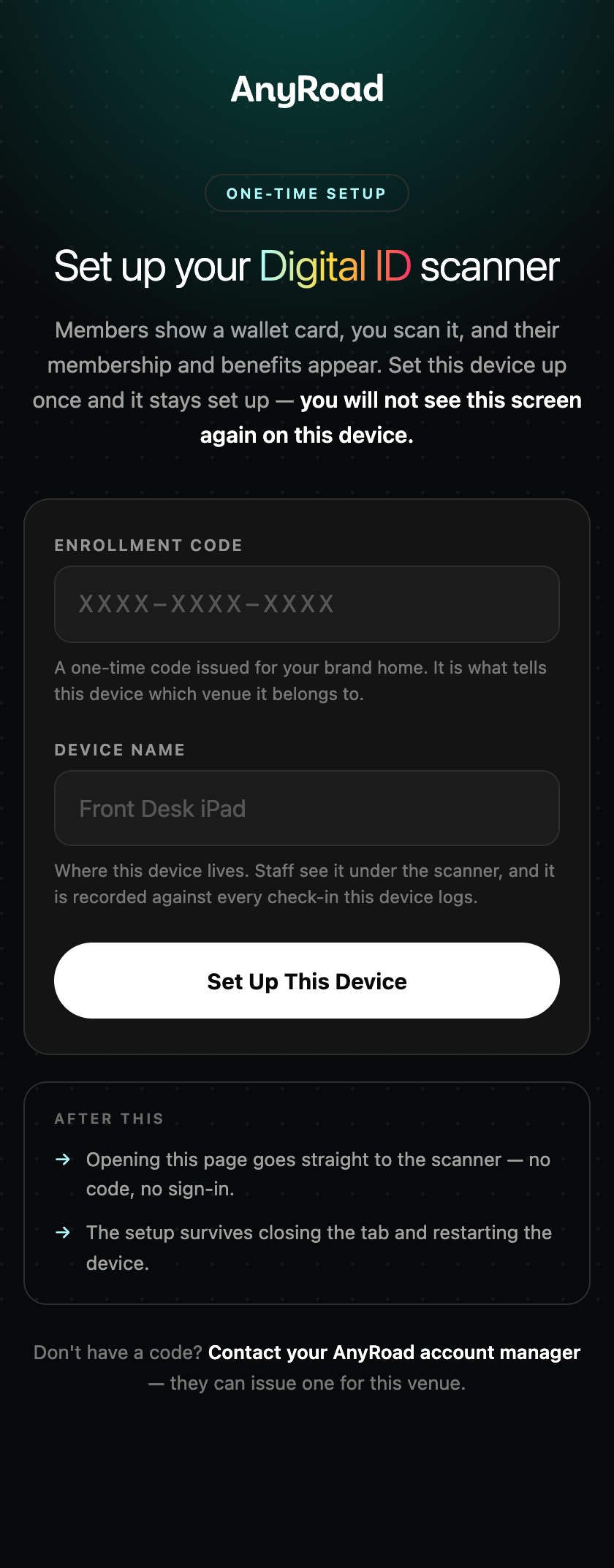
Once per tablet or phone. Your AnyRoad account manager issues the enrollment code — three groups of four characters, like 7K4M-QP9X-RTB2.
-
Open
id.anyroadclubs.comon the deviceIn the browser you settled on in Start here. It'll ask for a code.
-
Type or paste the code
Don't worry about getting it neat — the box tidies it up as you type. Lowercase is fine, and you can leave the dashes out; it puts them in for you.
-
Give the device a name
Say where it lives, not what it is — Front Desk iPad, Bar 2, Tour guide handheld. This name shows up next to everything you scan on it.
-
Tap Set Up This Device
You're straight into the scanner. That's it — no password, nothing to remember, and you won't be asked again.
Each code works once, for one device. If you're setting up two tablets, you need two codes.
A device in regular use stays set up indefinitely — through restarts, updates, and quiet weeks. Only one left completely untouched for about a year will ask again.
Tell your manager straight away so they can switch it off remotely. Don't wait to see if it turns up.
Scan a member
Two ways in. Use whichever is closer to hand.
Your ordinary camera
Point your phone's normal camera app at the QR code on a member's card, the way you'd scan anything else. Tap the link it offers, and the app opens already on that member.
You don't have to open the app first. This is usually the quickest way when you're not already holding the app open, and it's the reason the browser you set up in matters — see Start here.
The scanner inside the app
If you're already in the app — scanning a queue of people, say — point the camera in the app at the card instead. Same result, and it comes straight back for the next person.
If the card won't scan
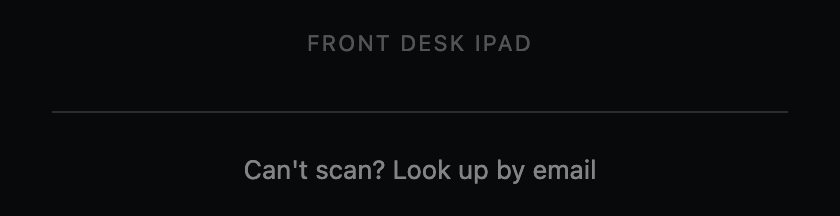
Cracked screen, dead battery, or they never installed the card. Under the camera, tap Can't scan? Look up by email, type their email address, and tap Look Up. It pulls up the same record and works the same way.
Occasionally one email address is on two memberships — a household sharing an inbox, or someone who signed up twice, once for pickup and once for shipping. The screen then shows both, each with the member's name and how they collect. Ask which one is in front of you, and use that section's buttons.
Check you've got the right person
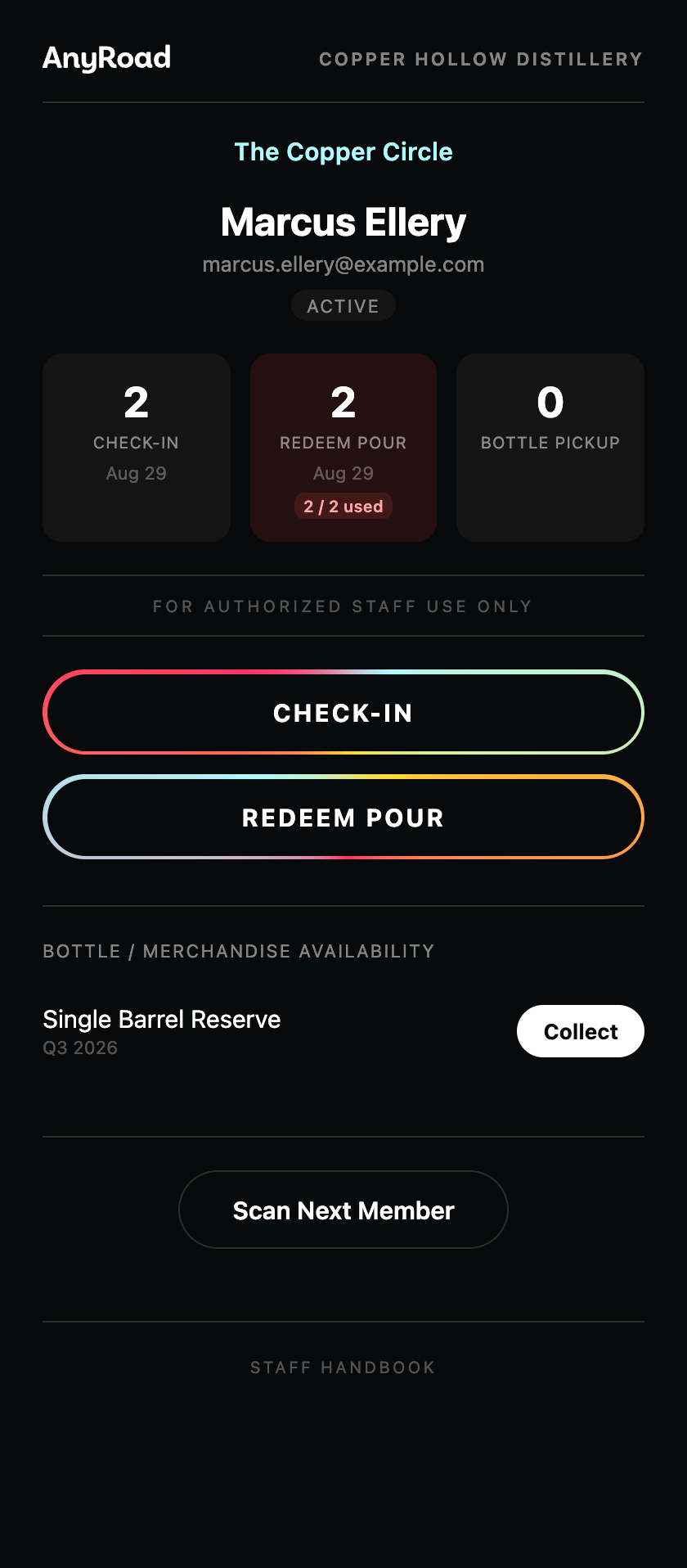
Their email address is at the top of the screen. Read it back to them to confirm you've got the right person.
Underneath it you'll see where they stand — Active, Paused, and so on. If there's a date next to it, read it. Ends December 31 means they're good today. A date that's already passed means check with a manager before pouring.
If your venue runs more than one program, someone can hold both — and both show up on one screen, each with its own buttons. You don't have to know which card is which. Just scan.
If the member isn't found
The app says so, and shows what it searched for.
Usually it's one of three things: the email on their card differs from the one they just gave you, they signed up minutes ago and haven't synced yet, or they're a member somewhere else. Check the email address on screen first — that's normally the answer.
Redeem a benefit
The buttons on the member's screen are your program's own — check in, a pour, a cocktail, a barrel thieving, a bottle pickup. Varies by program
Tap the one they're using. The app waits for it to save, then confirms. If it didn't save, it tells you. A double-tap on bad wifi records once, not twice.
If they're at their limit Varies by program
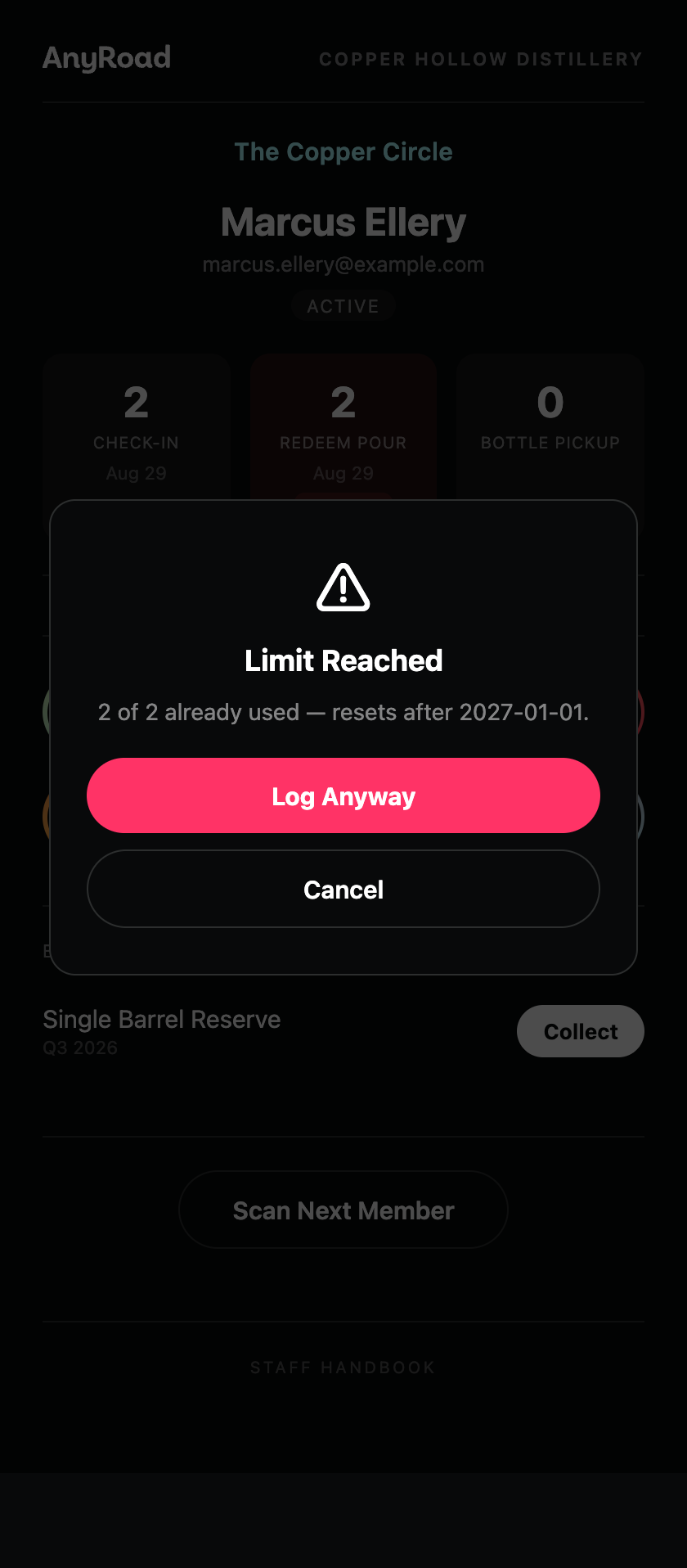
A warning comes up saying what the limit is and how much they've used. You can go ahead anyway — tap Log Anyway. Some programs ask you to type a quick reason first.
It flags the limit and leaves the call to you. Log it either way, so the visit is on the record.
Handing over a bottle Varies by program
If something's waiting for them, it shows on their screen. One tap hands it over and marks it collected. If a colleague already gave it to them, you'll be told that instead — so nobody walks out with two.
When something's off
What the app says, and what to do about it.
| What you see | What to do |
|---|---|
| We don't recognize that code. | The box already fixes capitals and dashes, so this is a genuinely different code. Check it with your AnyRoad account manager. |
| That code has already set up another device. | Codes work once. Ask your account manager for a new one — you need one per device. |
| That code has expired. | Your account manager can issue a fresh one. Nothing's broken. |
| Enter your enrollment code and a name for this device. | One of the two boxes is empty. The device name isn't optional. |
| Couldn't reach AnyRoad. | The device is offline. Check its wifi and try again — nothing was lost. |
| The app asks for a code again, out of nowhere | Most often you're in a different browser than the one you set up — see Start here. Otherwise the device was switched off remotely, its browser data got cleared, or it sat unused for about a year. |
| Scanning a card opens the setup screen | Your camera is opening a different browser than the one you set up in. Either set up that browser too, or open the app yourself and use the scanner inside it. |
| The camera won't open | The device needs camera permission for the site. Check it in the device settings, or look the member up by email in the meantime. |
| A benefit button you expected isn't there | Buttons are set per program, and the app only shows what applies to the card you scanned. Ask your manager if you think one's missing. |
None of this loses a visit. If you're stuck at the counter, look the member up by email, serve them, and flag it afterward.
Questions
The ones that actually come up on a shift.
Do I need wifi or signal?
Yes. The app looks people up and records what you give them, both of which need a connection. Offline it will tell you it couldn't reach AnyRoad rather than pretending it worked.
I tapped the wrong benefit. Can I undo it?
Not from the tablet — what's recorded stays recorded. Tell your manager, who can get it corrected. Don't tap anything else to try to cancel it out; that just adds a second entry.
I added it to my home screen and now it wants a code.
The icon can count as a separate place from your browser, with its own setup. Ask your account manager for a second code if you want both — and set your browser up first, since that's the one a scanned card opens.
Can two devices share one enrollment code?
No. One code sets up one device, then it's spent. Ask your account manager for as many as you have devices.
Can I use my own phone?
Yes, with a code from your manager. Name it so people know it's yours, and say something if it leaves with you.
Do I need to log out at the end of my shift?
There's nothing to log out of. The device stays set up, and the next person picks it up ready to go.
Someone scanned a member twice. Is that two redemptions?
Two taps in quick succession count once. Two genuine visits count twice, which is correct even if it looks odd on the day.
The member says they're a member, but nothing comes up.
Check the email address on screen against the one they give you, and ask whether they joined in the last few minutes. If neither explains it, serve them and flag it to a manager — don't turn someone away over a lookup.
Does the member see any of this?
No. This screen is yours. Their card updates itself in their wallet when their membership changes, without anyone doing anything.
Can I look someone up from another venue?
No. A device reaches the programs your venue runs and nothing else.
This device is moving to another venue, or I want to start over.
Under the scanner, tap Unenroll this device. It asks you to confirm in two steps, then switches the device off — the same as your manager doing it — and returns to the setup screen. You'll need a new code to set it up again, so ask for one first.
Someone left and their phone was set up. What now?
Tell your manager. It takes seconds to switch a device off, and it stops working immediately.
What the words mean
The terms on screen, in the order you're likely to meet them.
- Program
- The thing a member actually joined — a club, or a membership. Your venue may run more than one, and a person can hold two at once.
- Active
- Their membership is in good standing. Serve them.
- Paused
- Usually a billing hiccup rather than a cancellation. They keep their benefits — serve them as normal.
- A date next to the status
- When their membership ends. A future date means they're good until then. A date already past means check with a manager before pouring.
- Check-in
- A visit, recorded. It doesn't use anything up — it's just a note that they came.
- Redemption
- A benefit actually used: a pour, a cocktail, a barrel thieving. These are the ones that count against a limit.
- Limit
- How many of a benefit someone gets in a period — a day, a year, whatever your program sets. The app warns when they reach it; it never refuses.
- The numbers on the tiles
- How many times they've had each thing, with the date of the most recent. A red tile means they're at or over the limit for it.
- Allocation
- A physical item set aside for them — usually a bottle. It shows on their screen until someone hands it over.
- Collect
- The button that hands an allocation over and marks it gone, so nobody gives out a second one.
- Enrollment code
- The one-time code that sets up a device. From your AnyRoad account manager, good for one device.
- Device name
- What this tablet or phone is called. Recorded against everything scanned on it, which is why it should say where it lives.
Member information
You'll see personal details on this screen all day, so it's worth knowing what's there and what isn't.
What the app shows you
- Name and email address
- Whether their membership is active
- What they've redeemed with you, and when
- Anything waiting for them to collect
What it never holds
- No card or payment details
- No home address
- No phone number
- No date of birth
- No passwords
There's nothing on this screen you could use to charge someone.
Your part in it
- Don't pass enrollment codes around. A code sets up a device that can look up your members. Use it, then it's spent.
- Report a lost device the same day. It can be switched off remotely in seconds, but only if someone knows.
- Don't read a member's details out loud any further than you need to confirm who they are.
- Location is optional. If the device asks to use your location, you can decline. Scans record perfectly well without it.
Pass it to your manager rather than answering from the screen — especially anything about deleting their information or canceling. Those go through your membership team, not the tablet.